ALERT : Installation
To launch the installation of Micromedia Solution, plug the installation USB stick. If the installation program does not start automatically after a few seconds, launch the installation program “SETUP.EXE” located at the root of USB stick.
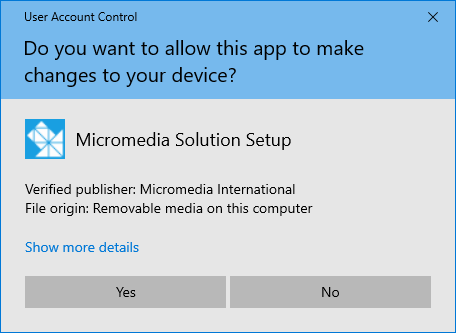
Click on "Yes"
Languages
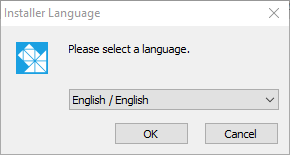
Several languages are offered, this choice only concerns the current installation. The software language can be chosen after set up.
Type of version : 32 bit or 64 bit
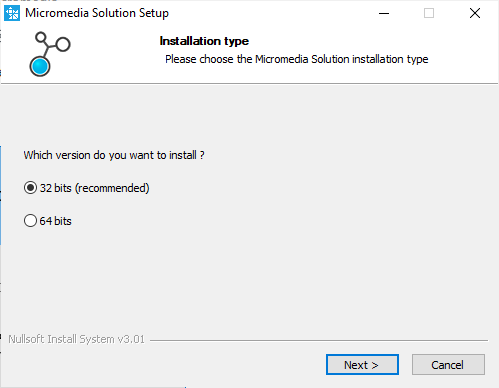
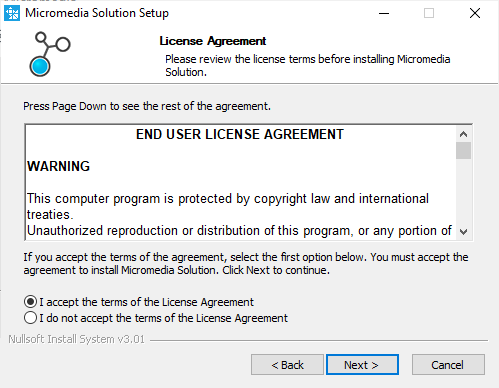
Keep default choice (32 bit) unless you have peculiar needs. This is valid even on a 64-bit Windows.
Softwares to install
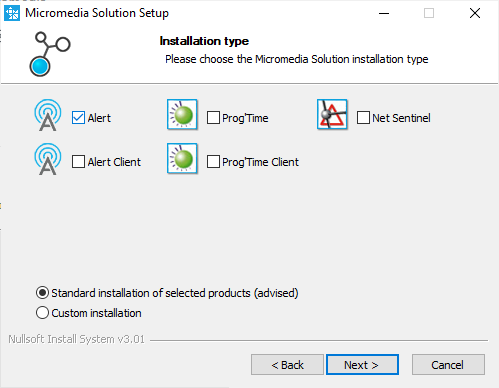
Select ALERT software.
Check the box in front of "Alert". A default installation is recommended. All modules are installed (Drivers, mediators, plugins ...). The activation of each element will be done in the software.
Installation folder
Two locations are necessary :
The binaries folder where programs and all modules are copied. (C:\Programfiles(x86)\Micromedia by default)
The data folder where the configuration files will be stored. (C:\ProgramData\Micromedia by default)
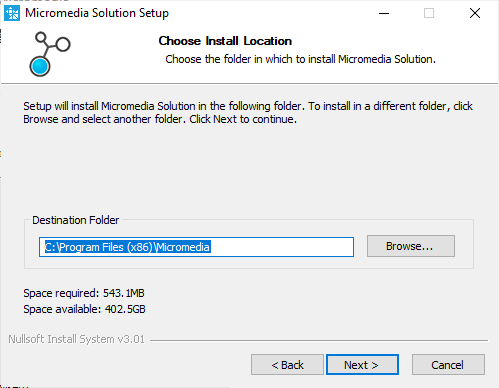
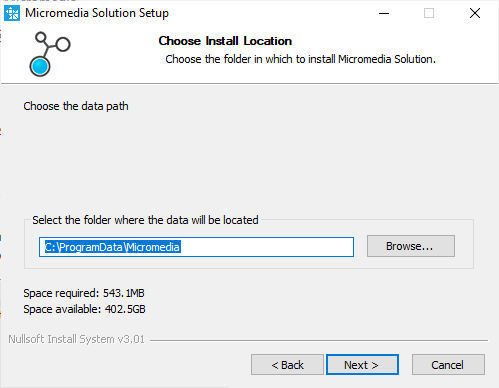
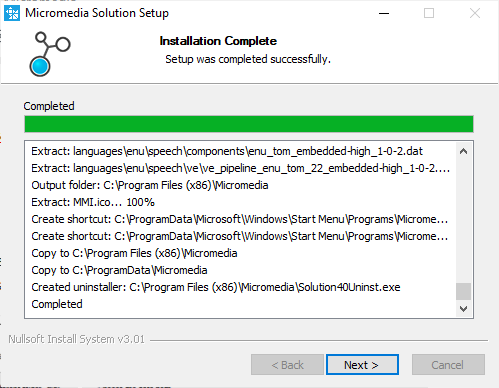
Once these choices have been made, the installation starts automatically.
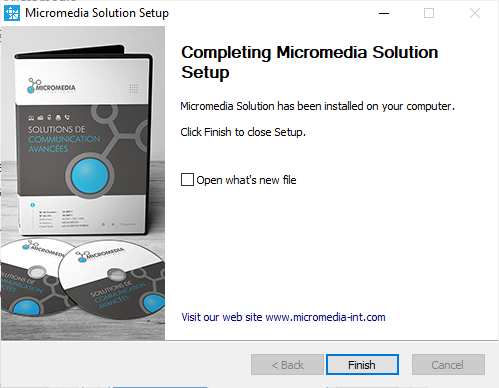
Install is now complete, you could move on to launching ALERT and registering license.