Best practices for using and configuring Alert
1. Using passwords in Alert
1.1. Operator password
Access to the configuration and operation of the Alert software is protected by identification and authentication of operators who interact with the software.
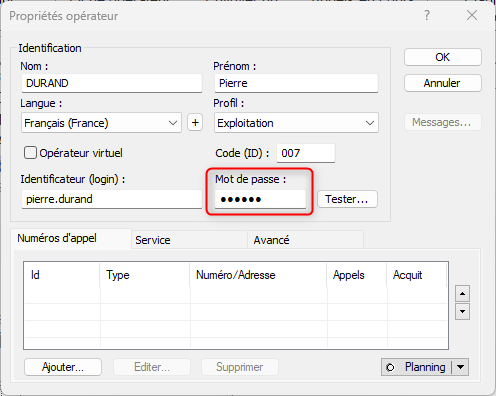
To allow access to the software only to qualified persons, it is advisable to define for each operator a numeric or alphanumeric secret code. This code will be used to authenticate the operator during local access or remote access by phone.
1.2. Active Directory authentication
User authentication can be strengthened and secured by using LDAP directory services of the company (Active Directory).
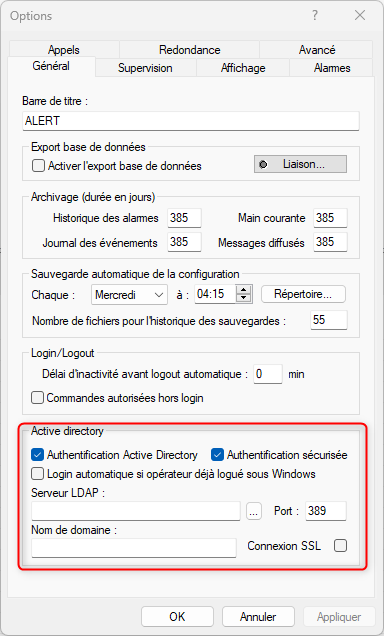
To enable authentication through Active Directory, open the Options dialog box (menu “Configuration / Options”), select the General tab, and set in the Active Directory group the Active Directory LDAP directory settings to use.
When the Active Directory authentication option is checked, the access of each operator declared in ALERT will be controlled by the Active Directory server of the domain and the password to be entered will necessarily be the one declared in the Active Directory server and not the code defined in the "password" field of the “User properties” dialog box.
When the Secure authentication option is checked, the authentication of the operator to the LDAP server is secured via the "DIGEST-MD5" authentication mechanism. The password is not transmitted unencrypted over the network.
If this option is not checked, operator authentication to the LDAP server does not use a secure mechanism (simple authentication). As in this case the password is transmitted in plain text over the network, it is preferable to use a secure connection ( SSL connection option checked).
2. Alert Mobile
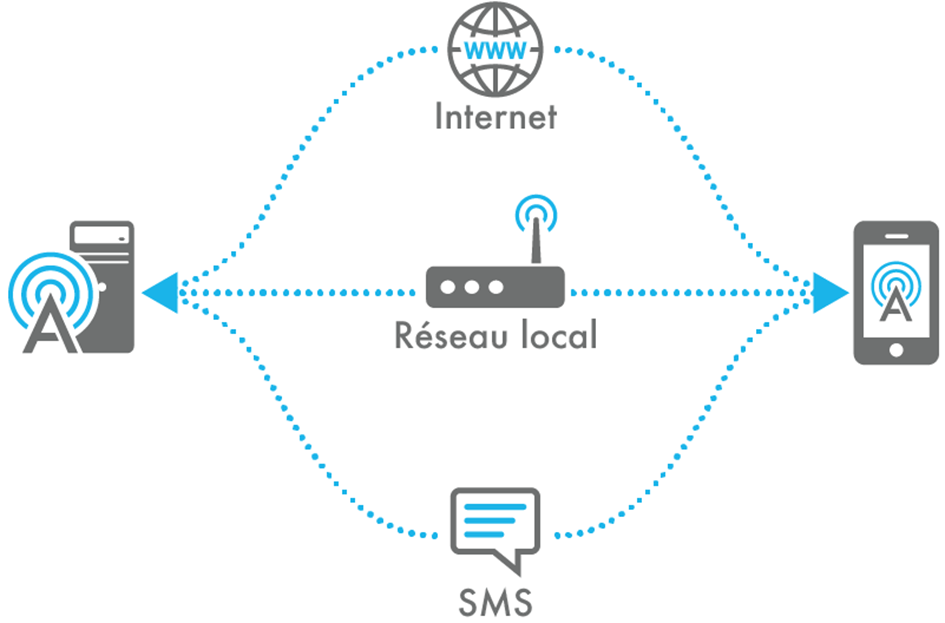
AlertMobile offers 3 different connection modes:
- AlertMobile WIFI via the company's WIFI network (Android only), for communication with mobiles on the site.
- AlertMobile WEB via the AlerMobile Gateway and the 3G/4G network (Android & iOS), for worldwide communication with mobiles.
- AlertMobile SMS via GSM modem. This connection mode is not supported by iOS and is not allowed on the Play Store. A installation file compatible with this connection mode can be provided on request for Android mobiles.
2.1. AlertMobile WIFI
AlertMobile Wifi uses by default the ports 8123, and 8124 for SSL connection.
For better security, it is advisable to opt for an SSL connection and only open the used port.
2.2. AlertMobile Gateway
This solution uses the push notification service via the AlertMobile Gateway and AlertMobile installed on a smartphone. To operate this communication the smartphone must have an Internet connection.
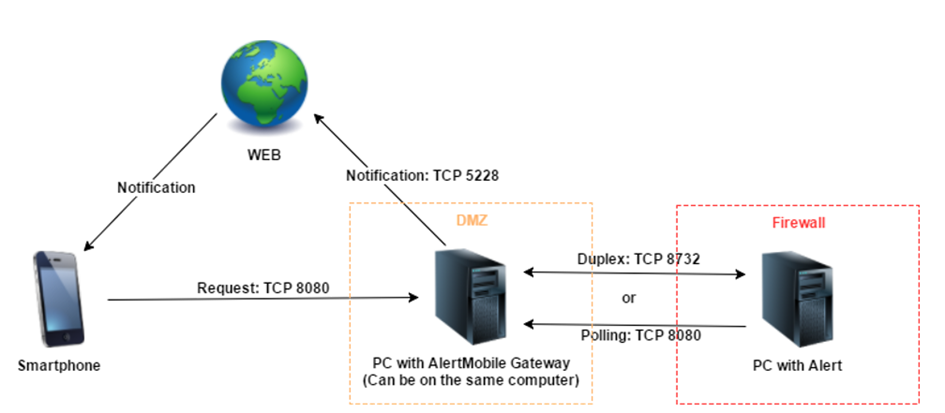
Be sure to open only the ports you are using. Here are the default ports:
Between ALERT and the AlertMobile Gateway service (only, if both are not installed on the same machine)
- TCP port 8732 in both directions (inbound and outbound) on both computers
Between the AlertMobile Gateway service and Internet/Web
- TCP port 8080 outbound on the Alert computer and inbound on the AlertMobile Gateway computer
- TCP port 443 in the case of a secure HTTPS connection
Service de notification push :
- TCP port 5228 out
Between AlertMobile and ALERT or AlertMobile Gateway
- TCP port 8080
You can also allow the use of SSL in the firewall settings.
Approach your IT department to follow your architecture recommendations.
3. GSM Modems
Many GSM modems are able to connect to the 3G and/or 4G bands. To prevent any incoming or outgoing internet connection, we recommend to use SIM card plan without Data.
Contact your mobile provider to find out about the possibilities.
4. TCP and UDP Ports
For added security, only open the ports used in your configuration. The following is a summary of the TCP and UDP ports used by Alert:
4.1. Alert
4.2. Data acquisition connectors
4.3. Communication drivers
The list of all IP / UDP ports used by Alert is available from here : TCP or UDP Ports used by Alert