FX30 Modem: Firmware update
Attention: To update the FX30 modem firmware, please contact Micromedia support to obtain the download link for the firmware to be installed.
Prerequisites :
Before upgrading your modem, you need to have the following 3 items in procession:
- The Sierra Wireless USB driver for Windows to connect the modem to USB for the update. You can download it from the link below:
- SiwiUpdate software version 2.0.0.5 (18/08/2022). This software is used to program and update the modem. You can download it from the link below:
- FX30 modem firmware supplied by Micromedia
Good practice:
- As the FX30 modem is based on an embedded system, start-up is not instantaneous.
- Using a DOS terminal to continuously ping the FX30 modem verifies accessibility.
- Micromedia applications also run when the FX30 modem is launched. Access to the various SSH / VOIP / SMPP services is not immediate.
1. Connecting to the FX30 Modem :
1.1 USB driver installation :
Run the driver installation file "GenericDriverSetup.exe", Click on the "Next" button

Accept terms of use :

Installation is performed :

Click on the "Close" button:

1.2 SiwiUpdate installation :
To access the FX30 modem, you need the "SiwiUpdate 2.0.0.5" software.
Launch the "SiwiUpdateSetup.exe" executable:

Select your Language and click on "OK" :

Click on the "Next" button :

Set the installation type to complete and click on the "Next" button:

Set the installation directory or leave the default path :
"C:\Users\UTILISATEUR_ACTUEL\AppData\Local\Micromedia\x86"
Then click on the "Install" button:

When installation is complete, click on the "Next" button:

Leave the "Launch SiwiUpdate 2.0" option ticked and click on the "Close" button:

The SiwiUpdate software runs:

1.3 Connecting to the FX30 modem :
Once the driver has been initialized and the FX30 modem has started up, you can ping the address 192.168.2.2 to check communication with the FX30 modem.
The modem also appears in the Device Manager under "USB bus controllers" with the entry "Sierra Wireless USB Composite" :
 
|
Run the SiwiUpdate software :

Select USB port and enter the IMEI code of the FX30 modem in the "Password" field:
Click on the "Connect" button :

Information about the FX30 modem is displayed in the "Modem Properties" tab:
USB connection to FX30 modem is established.
2. Preparing for the update :
2.1 Backing up the license :
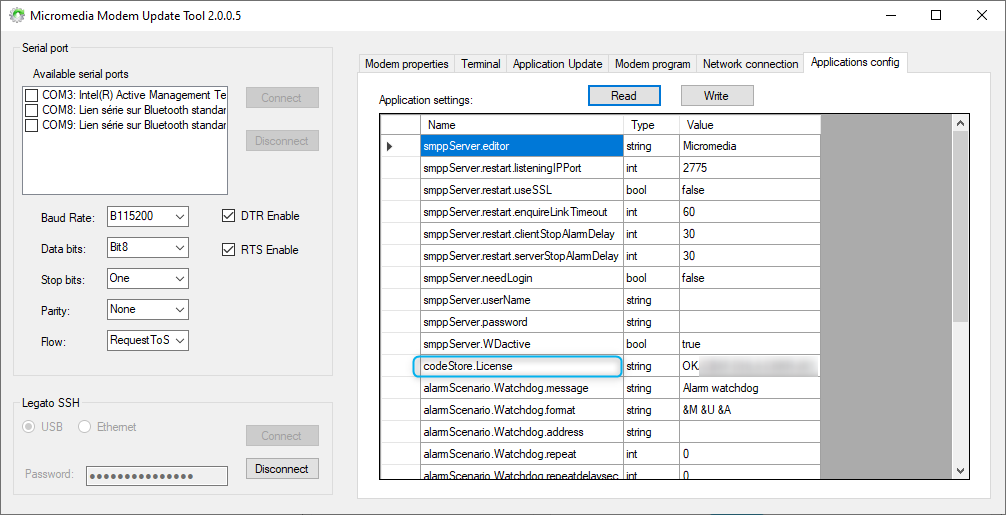
Click on "Application config" tab:

Click on the "Read" button:

The Micromedia Applications configuration is displayed:

Locate entrance "Code.Store.Licence" and save the value in the "Value" in a text file :
2.2 Micromedia application services discontinued :
Click on the "Modem Properties" tab:

Locate "Legato Applications" section:

Services whose names are highlighted in green must be stopped. The following 4 services must be stopped:
- alarmService
- licService
- sipServer
- smppServer
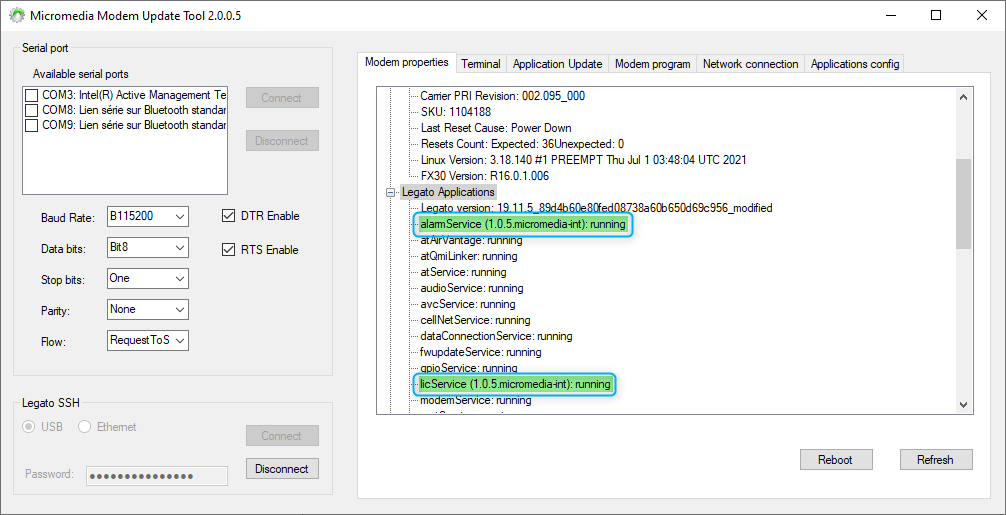
Right-click on one of these services and select "stop Nom_du_Service" :

The service status changes to "stopped" and the service name is now highlighted in red:

Perform the same operation on the other 3 services.
3. Updating the FX30 modem firmware :
To monitor the FX30 modem reboot, we recommend running the command "ping 192.168.2.2 -t" in a DOS terminal.
Select the "Application Update" tab:

Click on the "..." button:

Select the ".cwe" modem update file:

Click on the "Open" button:

Click on the "Update" button:

The update process starts:

During this process, the modem will restart, and may remain unreachable for several minutes. An error message will indicate that the FX30 modem has been disconnected:

Click on the "OK" button and wait until the ping is restored (approx. 4 - 5 minutes).
Re-establish a USB connection to the FX30 modem. The first time you connect, you'll need to reset the password.
Enter the IMEI then click on the "OK" button:

Check the firmware version by clicking on the "Modem Properties" tab:
In the "Generic properties" section, check the firmware version in the "FX30 Version" entry:

Firmware update completed.