OPC UA : Data server configuration
OPC UA data can be retrieved by declaring an OPC UA data server in ALERT.
Adding an OPC UA data server:
In the ALERT tree, right-click on the "Acquisition" box and select "Add a data server":
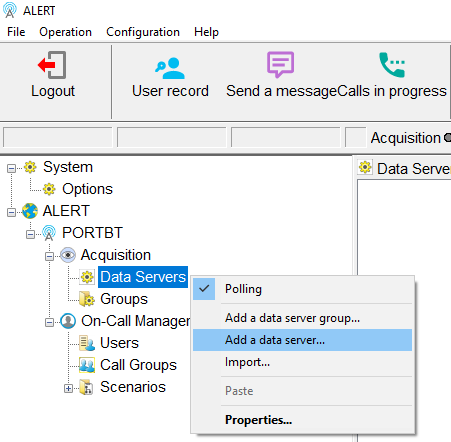
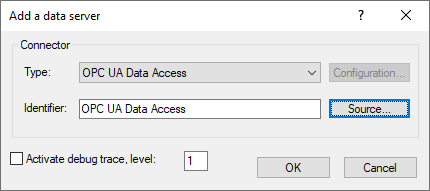
The data server selection window appears:
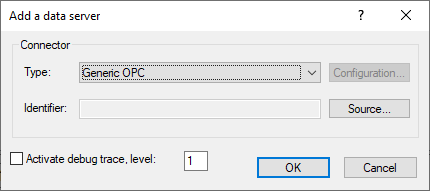
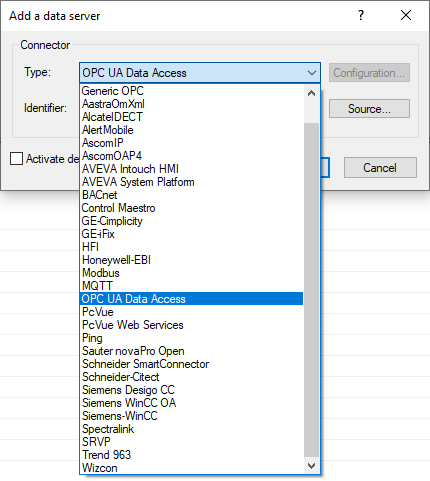
In the "Type" drop-down list, select "OPC UA Data Access":
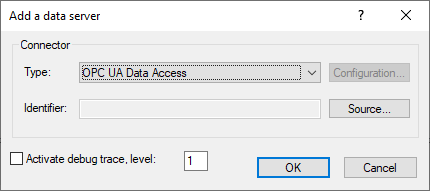
Click on the "Source" button:
Define the data server name in the "Name" field:
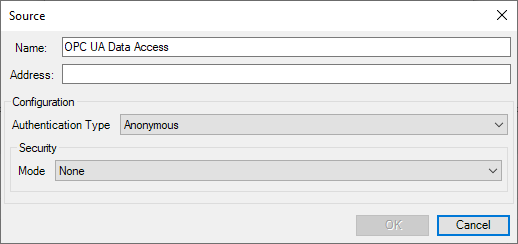
Define the data server address in the "Address" field:
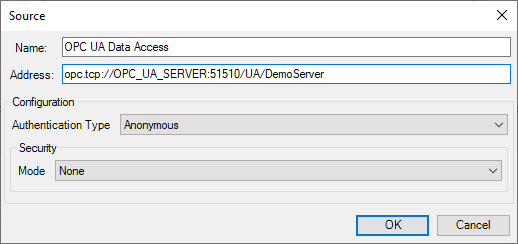
1. Configuring the authentication type:
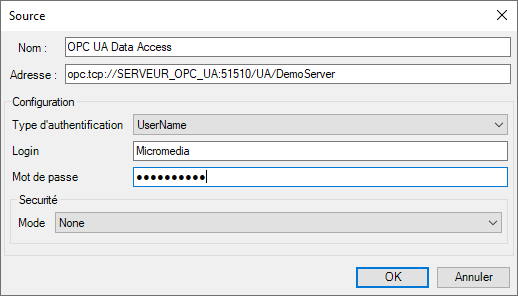
Click the "Authentication Type" dropdown list to configure the authentication method used by the connection to the OPC UA data server:
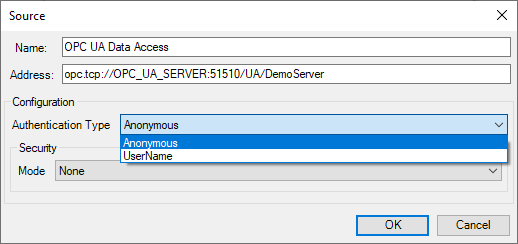
1.1. "Anonymous" authentication:
When the OPC UA server does not use authentication, use the "Anonymous" option from the dropdown list:
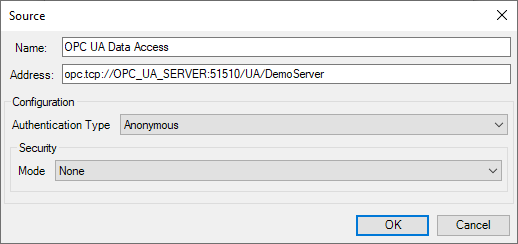
1.2. Authentication "UserName":
When the OPC UA server requires a login/password, select the "UserName" option from the dropdown list:
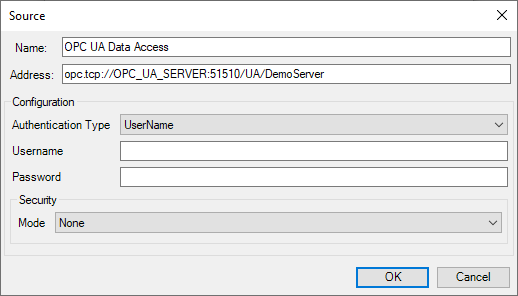
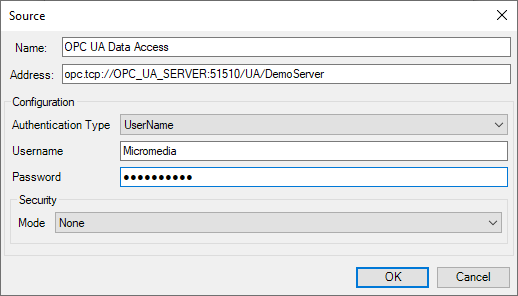
Then configure the login and password in their respective fields:
2. Security type configuration:
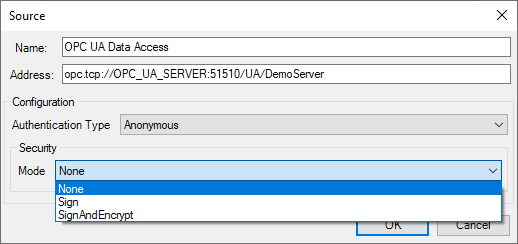
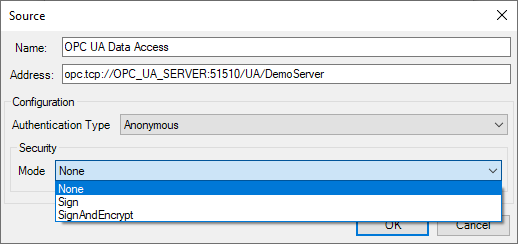
Click the "Mode" dropdown list to configure the security type used to connect to the OPC UA server:
2.1. Unsecured connection to the OPC UA server:
When the OPC UA server does not require an authentication certificate or communication encryption, select the "None" option from the "Mode" drop-down list:
2.2. Connecting to the OPC UA server with an authentication certificate:
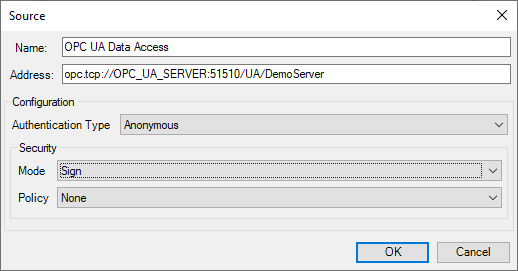
When the OPC UA server requires an authentication certificate, select the "Sign" option from the "Mode" dropdown list:
The "Policy" drop-down list appears:
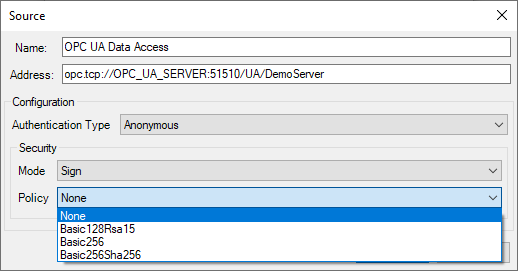
Select the security policy used by the authentication certificate from the drop-down list:
2.3. Connection to the OPC UA server with authentication certificate and communication encryption:
When the OPC UA server requires an authentication certificate and encryption of the communication, select the "SignAndEncrypt" option from the "Mode" drop-down list:
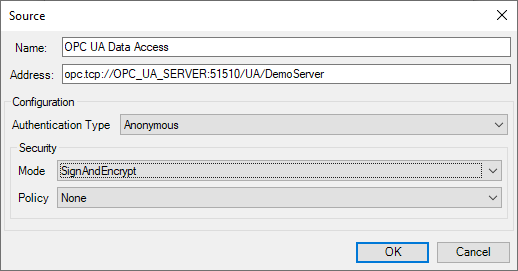
Select the security policy used by the authentication certificate from the "Policy" dropdown list:
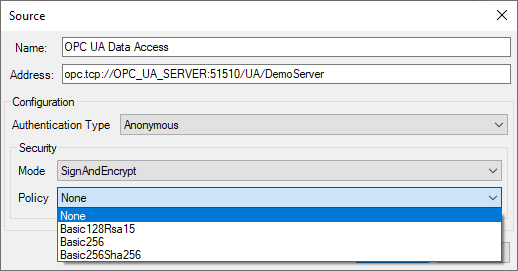
Click "OK".
Accept the OPC UA server certificate:
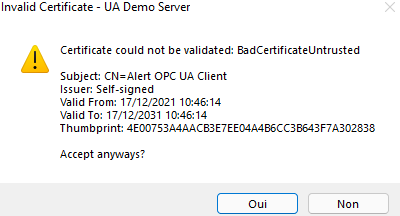
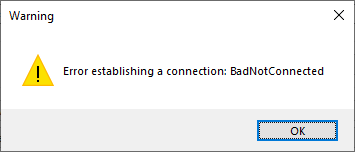
If the attempt fails, a warning message will be displayed:
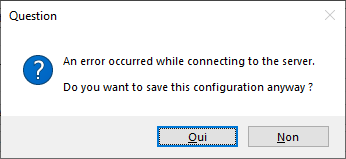
Despite the communication failure, you can save this configuration by clicking "Yes" or revert to a blank configuration by clicking "No":
If the connection was successful, the "Add a data server" window will reappear:
Click the "OK" button to complete the setup.